Local AI Lab --- Minecraft Server on Proxmox --- LAN Play for Two
This one is a short detour from the AI workload series. I want to run a Minecraft Java Edition server on the homelab --- for LAN play with my daughter. Her machine is a Lenovo 500W Gen 3 on Linux (ZorinOS) ; mine is a MacBook Pro. The first question : where does a Minecraft server belong in a three-node Proxmox cluster, and how do I stand it up without it touching the AI workloads on pve1?
Goal
A PaperMC server running as an LXC on pve3, reachable from both laptops over the home LAN. No port forwarding, no public exposure --- this is local play only. The AI stack on pve1 should not know the game session is happening.
Working assumption
A Minecraft Java server is a Java process. It does not need hardware isolation, GPU access, or a dedicated kernel boundary. LXC is the right container type here --- lower overhead than a VM, faster stop/start, simpler resource control. pve3 (ProDesk #2, i5-7500T, 16 GB RAM) is the designated personal services node per the plan in the previous post. 2 vCPUs and 4 GB RAM (3 GB JVM heap) is sufficient for two concurrent players; the ProDesk still has 12 GB free for other containers.
Placing the server on pve3 also means the AI workloads on pve1 see zero resource contention --- no suspend workflow needed during game sessions.
Here’s the placement. The game server lives on pve3 ; the GPU node carries on untouched ; both laptops reach it directly over the LAN.
Prerequisites
- pve3 installed, clustered, and reachable at
192.168.2.123 - Both client machines have Minecraft Java Edition licensed and installed the older version 1.21.4 (client and server versions must match)
- Home router DHCP assigns a stable LAN IP to pve3, or a static lease is configured
Implementation
1. Pull the container template
List what is actually available before downloading --- the point release in the filename changes as Debian updates, so hardcoding it breaks:
pveam updatepveam available --section system | grep debian-12Expected output on a current system:
system debian-12-standard_12.12-1_amd64.tar.zstDownload using the exact name returned:
TMPL=$(pveam available --section system | grep debian-12 | awk '{print $2}')pveam download local $TMPL2. Create the LXC
TMPL=$(pveam available --section system | grep debian-12 | awk '{print $2}')pct create 200 local:vztmpl/$TMPL \ --hostname minecraft \ --cores 2 \ --memory 4096 \ --swap 512 \ --rootfs local:8 \ --net0 name=eth0,bridge=vmbr0,ip=192.168.2.130/24,gw=192.168.2.1 \ --nameserver 192.168.2.1 \ --unprivileged 1 \ --start 1When the container is created successfully, the output ends with SSH host key generation and a warning about systemd:
WARN: Systemd 252 detected. You may need to enable nesting.Task finished with 2 warning(s)!Fix the nesting warning before going further --- without it, systemd inside the container does not behave correctly:
pct set 200 --features nesting=1pct reboot 2003. Install Java inside the container
Debian 12 only ships OpenJDK 17 in its standard repos. Java 21 is required for Minecraft 1.21.x, and it is not available via backports either --- apt-cache search openjdk | grep 21 returns nothing. The reliable path is Eclipse Temurin from the Adoptium project, which packages Java 21 directly for Debian:
pct exec 200 -- bash -c " apt-get update -y && apt-get install -y wget gnupg apt-transport-https curl && wget -qO - https://packages.adoptium.net/artifactory/api/gpg/key/public \ | gpg --dearmor > /etc/apt/trusted.gpg.d/adoptium.gpg && echo 'deb https://packages.adoptium.net/artifactory/deb bookworm main' \ > /etc/apt/sources.list.d/adoptium.list && apt-get update && apt-get install -y temurin-21-jre"Verify Java landed:
pct exec 200 -- java -versionExpected output:
openjdk version "21.0.11" 2026-04-21 LTSOpenJDK Runtime Environment Temurin-21.0.11+10 (build 21.0.11+10-LTS)OpenJDK 64-Bit Server VM Temurin-21.0.11+10 (build 21.0.11+10-LTS, mixed mode, sharing)4. Create the working directory and download PaperMC
Create the directory explicitly before downloading. If it does not exist, curl will fail silently with a “No such file or directory” warning and write nothing:
pct exec 200 -- mkdir -p /opt/minecraftThen pull the latest PaperMC build for 1.21.4 using the API to resolve the build number automatically:
pct exec 200 -- bash -c " VERSION=1.21.4 BUILD=\$(curl -s https://api.papermc.io/v2/projects/paper/versions/\$VERSION/builds | \ python3 -c 'import sys,json; builds=json.load(sys.stdin)[\"builds\"]; print(builds[-1][\"build\"])') echo \"Downloading PaperMC \$VERSION build \$BUILD...\" curl -Lo /opt/minecraft/paper.jar \ \"https://api.papermc.io/v2/projects/paper/versions/\$VERSION/builds/\$BUILD/downloads/paper-\$VERSION-\$BUILD.jar\" echo \"Done.\""I went with 1.21.4 as it was the AI Coding Agent’s suggestion and I didn’t want to take much time researching the latest PaperMC server build. This got us playing quick --- I’ll circle back on updating to a more current minecraft version later on.
Expected output when it works:
Downloading PaperMC 1.21.4 build 232... % Total % Received ...Done.5. First-run and EULA acceptance
pct exec 200 -- bash -c " cd /opt/minecraft && java -Xms1G -Xmx3G -jar paper.jar nogui || true && sed -i 's/eula=false/eula=true/' eula.txt"The server starts, generates config files, prints a EULA warning, and exits --- that is expected. The || true prevents the non-zero exit from stopping the script, and the sed accepts the EULA in place. The first run also downloads mojang_1.21.4.jar and applies patches, which takes a minute.
Verify EULA was accepted:
pct exec 200 -- cat /opt/minecraft/eula.txt# Should contain: eula=true6. Create the start script
Heredoc syntax inside pct exec strips the shebang line --- the file gets created but #!/bin/bash disappears, which causes systemd to fail with status=203/EXEC (cannot execute). Use printf instead:
pct exec 200 -- bash -c 'printf "#!/bin/bash\ncd /opt/minecraft\nexec java -Xms1G -Xmx3G -XX:+UseG1GC -XX:+ParallelRefProcEnabled -XX:MaxGCPauseMillis=200 -XX:+UnlockExperimentalVMOptions -XX:+DisableExplicitGC -jar paper.jar nogui\n" > /opt/minecraft/start.sh && chmod +x /opt/minecraft/start.sh'Verify the shebang is present:
pct exec 200 -- cat /opt/minecraft/start.shExpected:
#!/bin/bashcd /opt/minecraftexec java -Xms1G -Xmx3G -XX:+UseG1GC -XX:+ParallelRefProcEnabled -XX:MaxGCPauseMillis=200 -XX:+UnlockExperimentalVMOptions -XX:+DisableExplicitGC -jar paper.jar nogui7. Create the systemd service
pct exec 200 -- bash -c "cat > /etc/systemd/system/minecraft.service << 'EOF'[Unit]Description=PaperMC Minecraft ServerAfter=network.target
[Service]Type=simpleUser=rootWorkingDirectory=/opt/minecraftExecStart=/opt/minecraft/start.shRestart=on-failureRestartSec=5s
[Install]WantedBy=multi-user.targetEOFsystemctl daemon-reload && systemctl enable --now minecraft"
The server takes 30--60 seconds to fully start on first run (world generation). Wait, then check:
pct exec 200 -- systemctl status minecraftYou are looking for Active: active (running) and this line in the log output:
[INFO]: Done (13.562s)! For help, type "help"That is the server’s ready signal. Verify the port is listening:
pct exec 200 -- ss -tlnp | grep 255658. Set up peaceful mode
By default the server runs in survival mode with hostile mobs enabled. For casual play, disable hostile mobs and set peaceful difficulty. The safe way to do this is to remove any existing difficulty and spawn-monsters entries before appending --- server.properties can accumulate duplicate keys if you append without cleaning first, and the first value wins:
pct exec 200 -- bash -c " sed -i '/^difficulty=/d' /opt/minecraft/server.properties && sed -i '/^spawn-monsters=/d' /opt/minecraft/server.properties && echo 'difficulty=peaceful' >> /opt/minecraft/server.properties && echo 'spawn-monsters=false' >> /opt/minecraft/server.properties"Verify the file has no duplicates:
pct exec 200 -- grep -E "difficulty|spawn-monsters" /opt/minecraft/server.propertiesExpected --- exactly two lines:
difficulty=peacefulspawn-monsters=falseRestart to apply:
pct exec 200 -- systemctl restart minecraftTo confirm peaceful mode is active from inside the game, type /difficulty in chat. The debug overlay (F3) also shows Difficulty: Peaceful on the right-hand panel.
9. Connect the clients
From the MacBook Pro:
- Open Minecraft Launcher → Installations → New Installation
- Under Version, select
release 1.21.4--- the client version must match the server exactly - Launch using that installation
- In-game: Multiplayer → Add Server
- Server Address:
192.168.2.130 - Done → Join Server
From the Lenovo 500W Gen 3 (ZorinOS):
Same steps. Both machines are on the same home LAN, so no port forwarding is needed.
Proxmox management
Stop, start, and check the container:
pct stop 200 # graceful stoppct start 200 # bring it backpct status 200 # running / stoppedTo stop just the Minecraft service without stopping the container:
pct exec 200 -- systemctl stop minecraftpct exec 200 -- systemctl start minecraftThe official Proxmox VE mobile app (iOS and Android) can also start and stop the container. Useful for spinning the server up just before a session without opening a terminal.
A note on AI workloads and resource contention
Since the server runs on pve3 and the AI workloads (Ollama, ComfyUI, etc.) run on pve1, there is no contention --- separate physical nodes, same LAN. No suspend workflow needed during game sessions. If the server were temporarily on pve1 instead, pausing AI VMs while playing is straightforward:
qm suspend <vmid> # suspend VM to RAM, fast resumeqm resume <vmid>pct stop <ctid> # stop an LXC (e.g. one running Ollama)pct start <ctid>For this setup, that is not a concern.
What changed
A few things in the initial plan did not work out in the actual pve3 setup:
- Java 21 is not in Debian 12 repos or backports.
apt-cache search openjdkreturns only Java 17. Switched to Eclipse Temurin from Adoptium. - Heredoc via
pct execstrips the shebang line. The start script was created without#!/bin/bash, causing systemdstatus=203/EXEC. Fixed withprintfinstead of heredoc. - Duplicate
difficulty=keys inserver.properties. Appending without removing the existing key left twodifficulty=lines; the first one (easy) won. Fixed withsed -i '/^difficulty=/d'before appending.
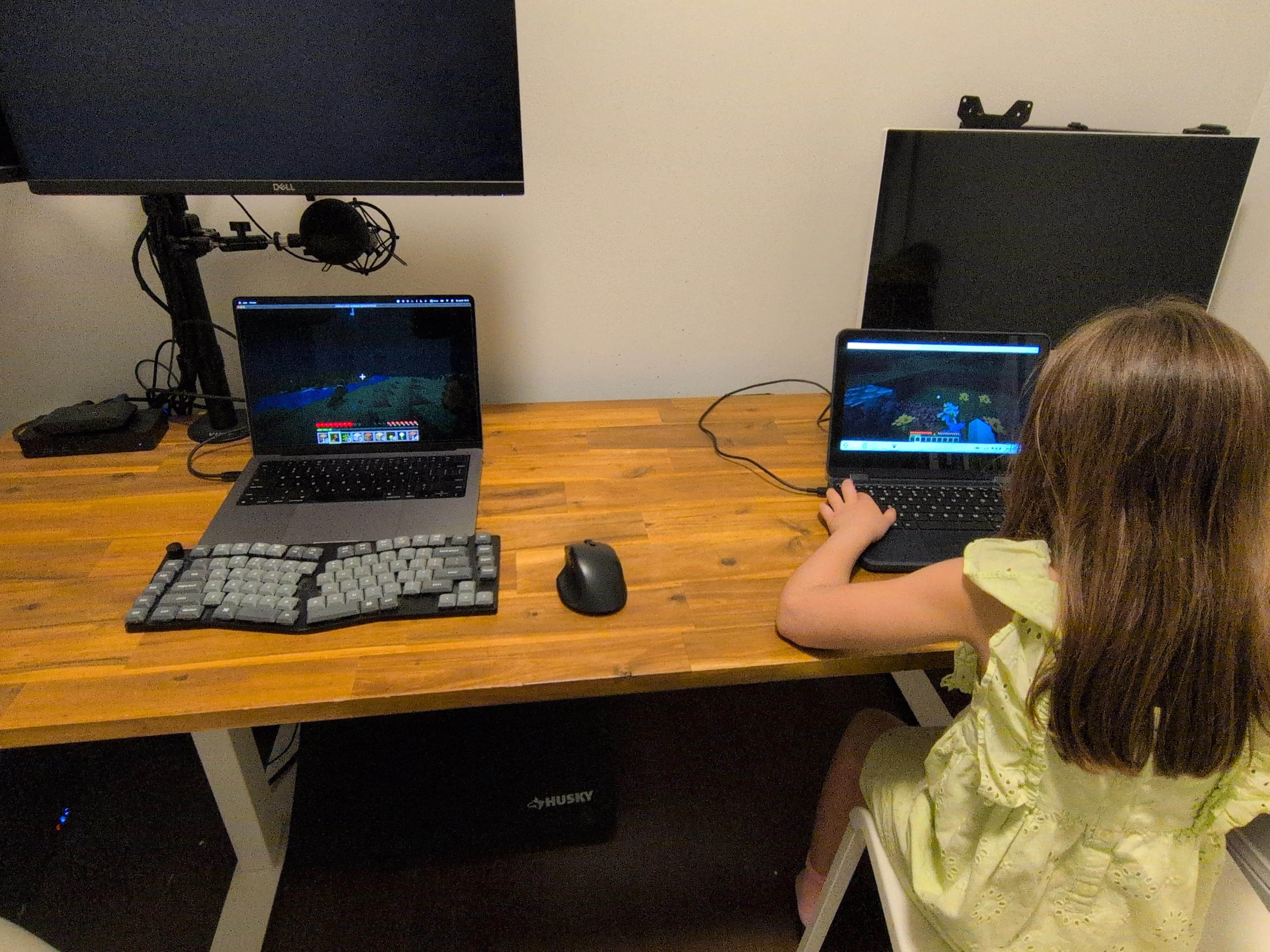
And this is the whole point of the detour. It was fun playing Minecraft together and watching her explore and build for the first time.